Nickolas Rau
Game Developer | Programmer | Designer
Game Developer | Programmer | Designer
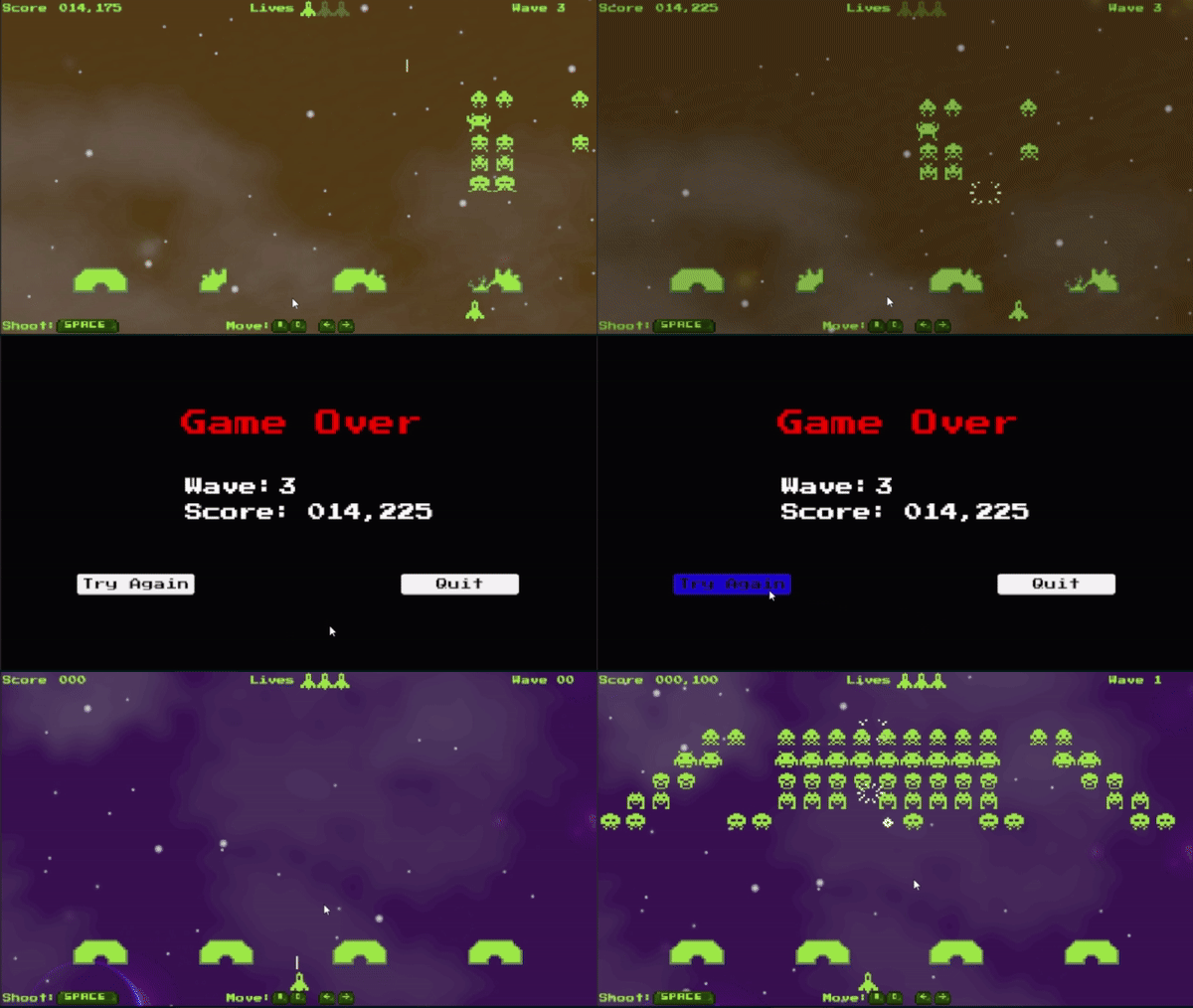
This was an apprenticeship done for Prosper IT Consulting where I participated in Agile/Scrum practices by completing user stories (as well as sprint planning, daily stand-ups, sprint retrospective) to deliver a fully functional micro-game on time. I personally was tasked with creating a Space Invaders clone that would play in an arcade machine. I encountered numerous mechanics and features needing to be implemented that I knew nothing about. Not only did I successfully learn new material and deliver a completed product 3 days ahead of schedule, but I gained hands-on project management and team programming skills that will be used and built upon in future projects.
I used transform.Translate() to move the player using its horizontal vector multiplied by a constant speed. This worked, but I needed a way to ensure the player stayed within the viewable bounds of the screen. To solve this, I created two variables that would hold the maximum position on the right and left sides of the screen before going out of view. Then I did a simple check to see if the player was within those two values. If they were, then allow input to move the player.
    if(transform.position.x >= maxLeft && transform.position.x <= maxRight)
    {
        float translation=Input.GetAxis("Horizontal") * playerStats.shipSpeed;
        translation *= Time.deltaTime;
        transform.Translate(translation, 0, 0);
    }
I discovered that this wouldn’t always work. Since I was using transform.Translate() to move, the player would sometimes move faster than the check to see if it was within the bounds. Therefore, it would go past the boundary to then be perpetually stuck and unable to register input.
To solve this bug I added two additional checks after the player movement to see if the player was outside the bounds. If they were outside the bounds, (which would mean they can never move again) then reset the player position back to the maximum right/left position. This way, if a player managed to go past the edge, the next line of code would quickly reposition them so that the next Update function call (checking if the player position is valid) would return true, allowing the player to move again.
    if(transform.position.x < maxLeft)
    {
        transform.position = new Vector2(maxLeft, transform.position.y);
    }

    if(transform.position.x > maxRight)
    {
        transform.position = new Vector2(maxRight, transform.position.y);
    }
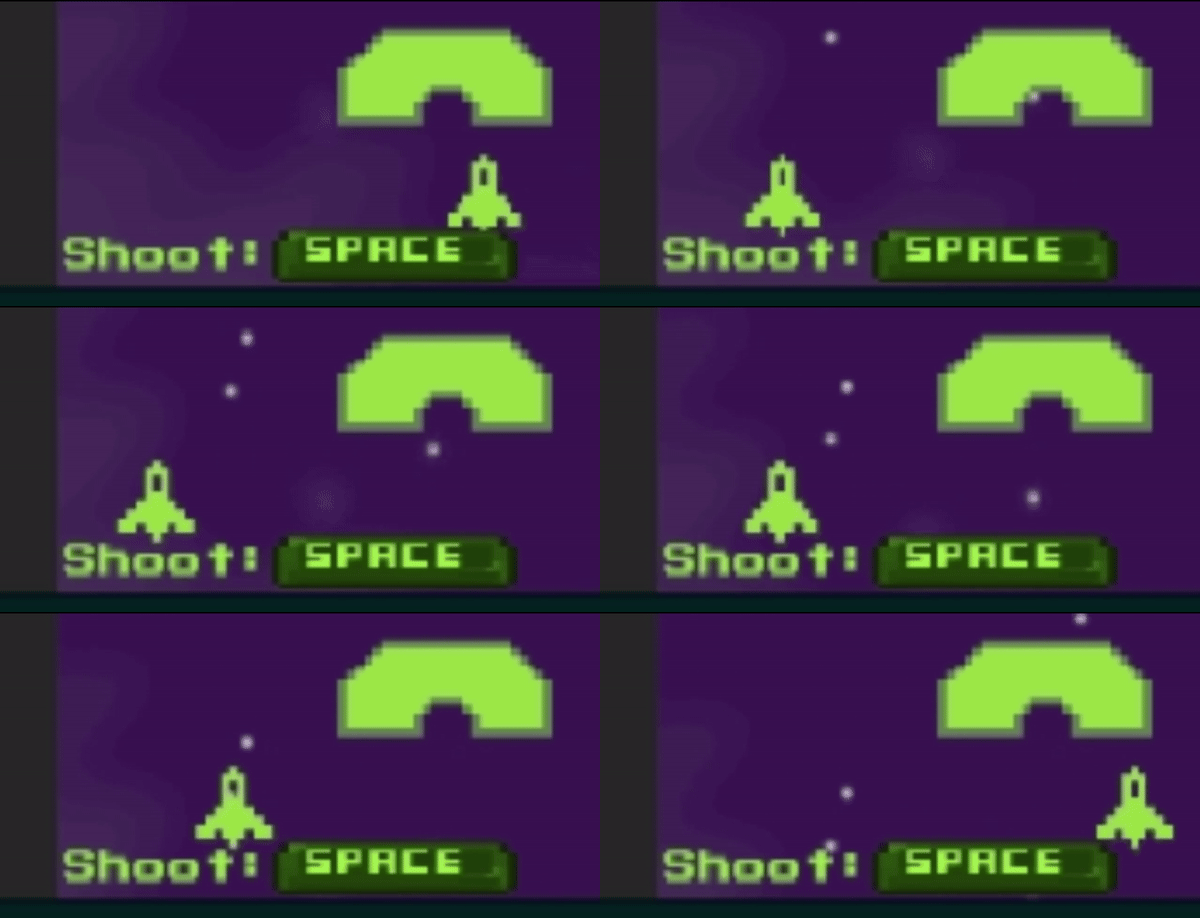
As you can see, seemingly giving an "invisible barrier" feel.
This functionality was built during a story where I was responsible for all player abilities. Initially, I coded the player controller script to register space bar input appropriately. Then made the player projectile by combining Unity’s sprite renderer component, 2DBoxCollider, 2DRigidBody, with a custom movement script that gives constant speed in the y axis once instaniated.
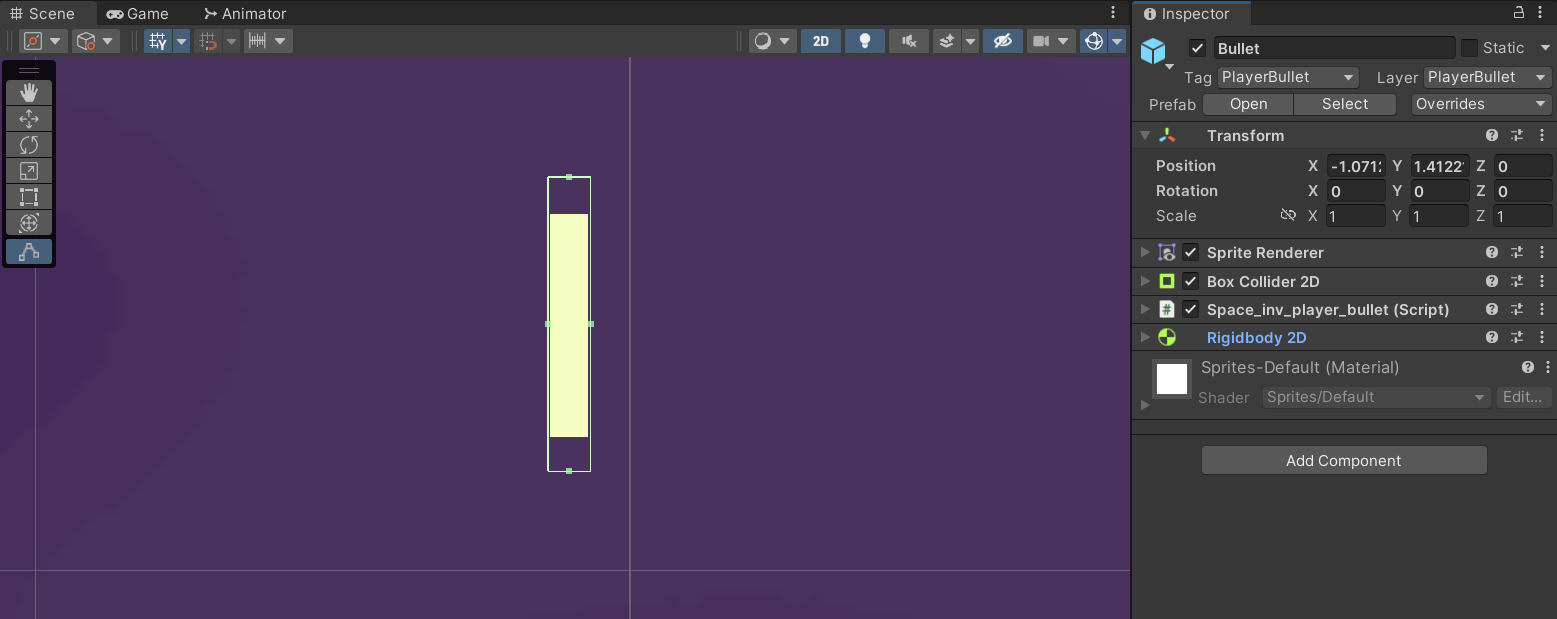
The shooting functionality worked, however, the player could hit the spacebar as fast as they wanted to shoot rapidly. Part of the difficulty in Space Invaders is the rate of fire and the necessity to plan your shots as the enemies dwindle.
To prevent the player from spamming, I implemented a coroutine that would call the shoot function. The time passed into WaitForSeconds() would simulate the fire rate with a simple boolean flag to check if the coroutine is active or not. In the code below, it is the isShooting variable.
    // In the Update Method
    if (Input.GetKeyDown(KeyCode.Space) && !isShooting)
    {
        StartCoroutine(Shoot());
    }

    // Shoot function called when space is pressed and isShooting is false
    private IEnumerator Shoot()
    {
        isShooting = true;
        Instantiate(bulletPrefab, transform.position, Quaternion.identity);
        yield return new WaitForSeconds(playerStats.fireRate);
        isShooting = false;
    }
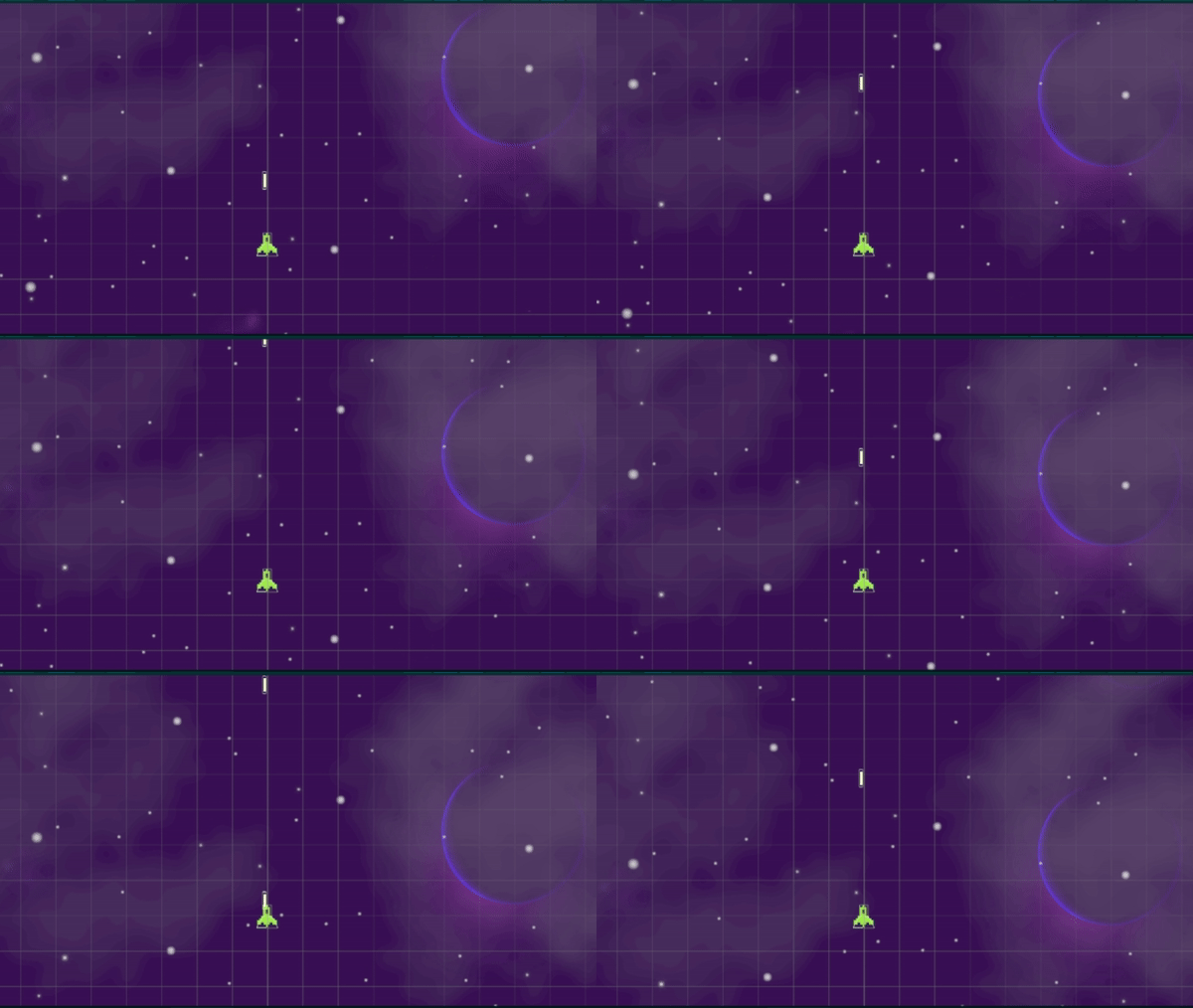
Steady rate of fire, even when spamming the space bar
When I created the prefab for this projectile and added the physics layer and object tag, I saw all pre-existing physics layers in the project. After reading the project documentation, I realized the necessity for additional physics layers to be added to the project so that the Space Invaders clone could behave in the same manner as its original. To be clear, this was before adding any enemies or shields into the game. I saw ahead of time that I would be detecting/ignoring collisions differently than what the current settings of the project allotted for. Specifically, I needed:
At this point in development, I reached out to the project manager communicating the need for these additions to the project. Since I did this as soon as I noticed the need, proper additions were made to the project’s collision matrix resulting in zero slow downs to other developers or merge conflicts. In fact, when I started working on the Environment / Enemy stories a couple days later, I was able to start and complete my deliverables without any delay. If I had said nothing and just waited until I encountered that problem within the story, I would have been at a roadblock, unable to continue development for at least 2 days.
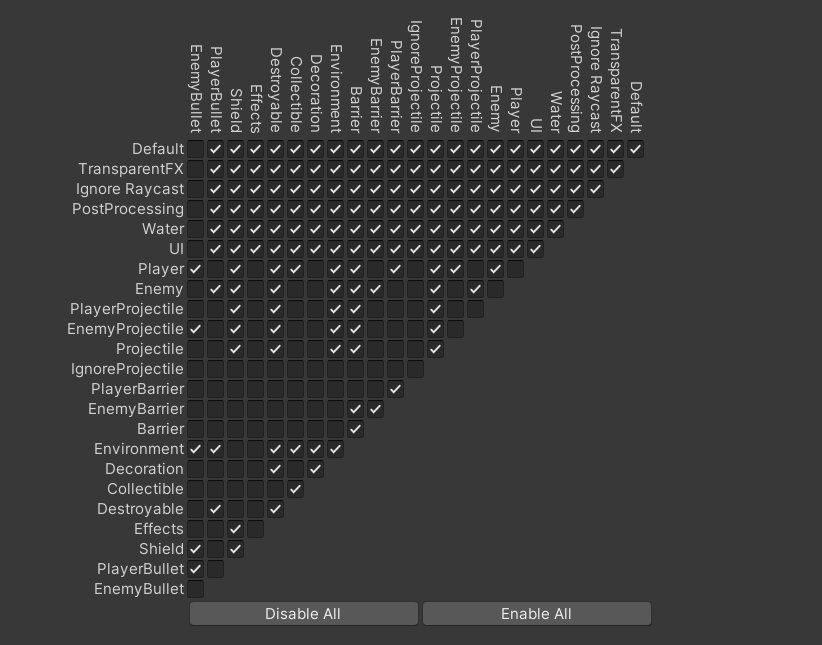
Notice how the "Shield", "Enemy Bullet", and "Player Bullet" have all been newly added on the left column with logic that is unique to any other previous layers.
I became efficient with the workflow for 2D animations. From importing, splicing, and editing sprites, to creating animation controllers and sequences. I built and tweaked the animations for the enemies to better match the speed of the original Space Invaders game.
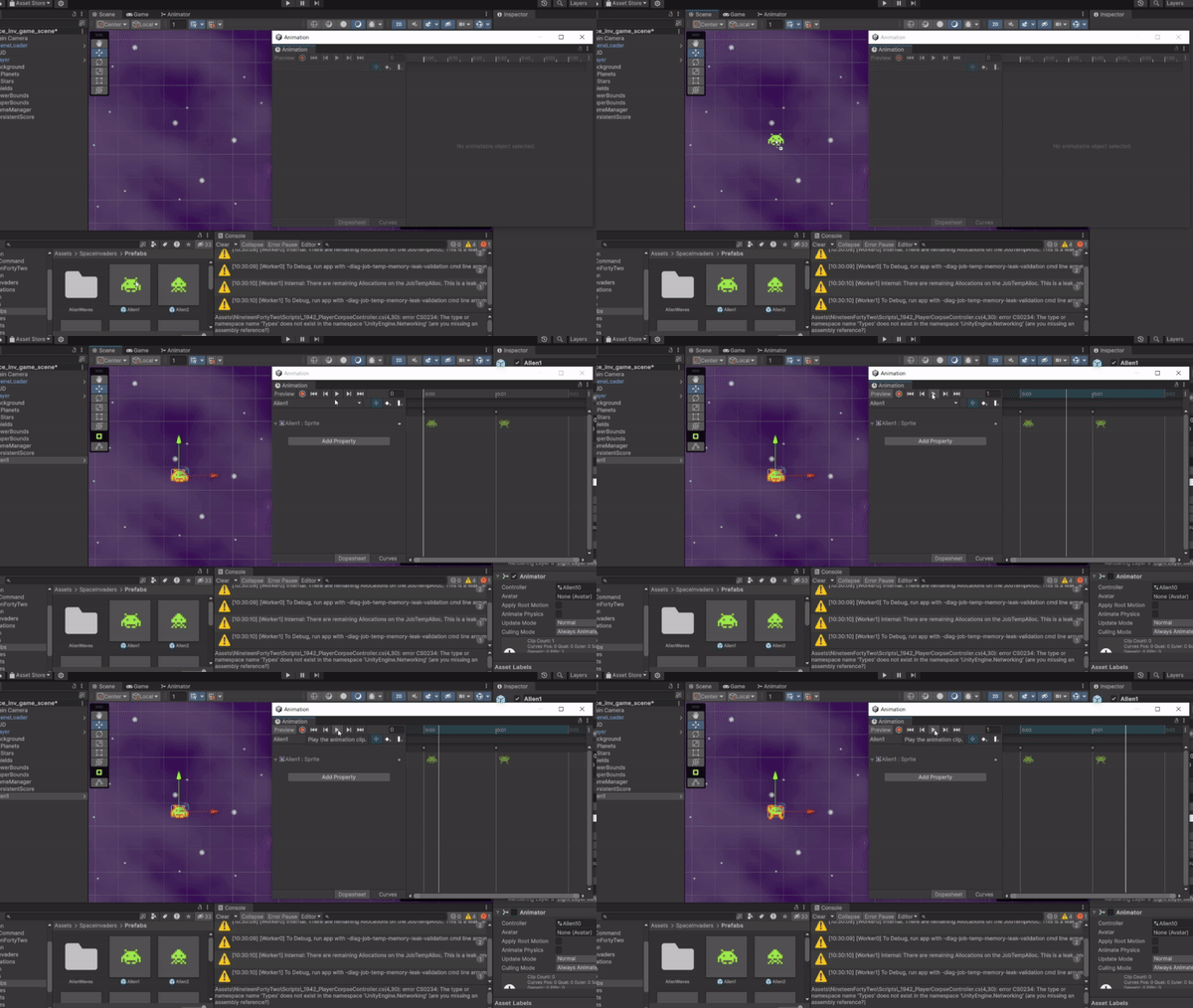
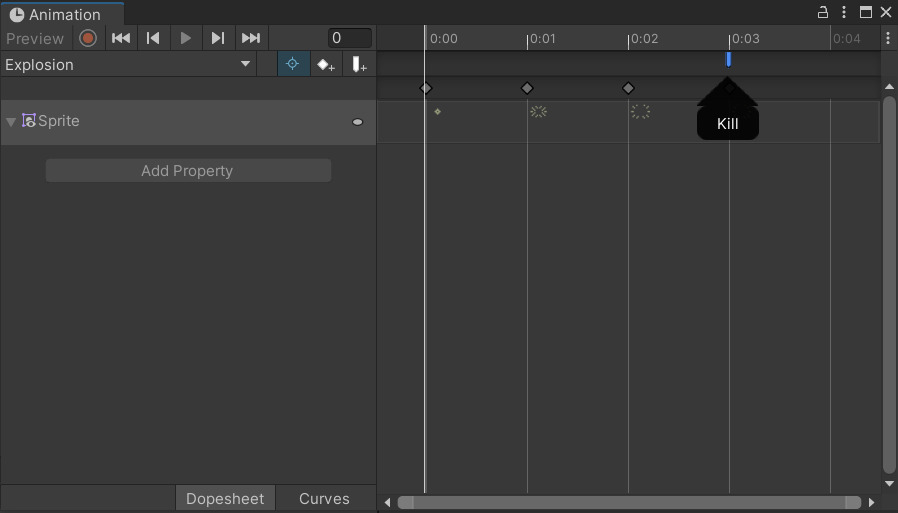
I had the explosion partcile prefab attached to the enemy that would instantiate it at the location an enemy died. The last frame of the explosion would stay on the screen permanently. I needed to destroy the particle, but only after the animation had fully played once.
I researched and referenced Unity’s documentation for solutions and found animation events. To solve this issue I implemented an animation event on the last frame to call a function name "Kill" to destroy itself. This ensured all responsibilities for the explosion particle’s existence were self contained by accessing its own method to remove itself from the game after playing its animation.
    public class space_inv_explosion : MonoBehaviour
    {
        public void Kill()
        {
            Destroy(gameObject);
        }
    }
This was arguably the most difficult challenge I faced as I needed to move the entire wave of enemies at a set interval while still keeping track of the total number of enemies remaining on screen that would proportionally increase their speed. To tackle this problem, I made 2 scripts.
Start by adding each object in the scene with the tag of “enemy” to the list.
    void Start()
    {
        foreach(GameObject enemy in GameObject.FindGameObjectsWithTag("Enemy"))
        {
        alienWave.Add(enemy);
        }
    }
Then, by updating a timer called "moveTimer", I call the MoveEnemies() function every time it reaches zero. MoveEnemies() then loops through each enemy and moves them a set distance. By playtesting and tweaking this timer, I achieved a feeling of the enemies moving in "steps."
    void Update()
    {
        if (moveTimer <= 0)
        {
            MoveEnemies();
        }
            moveTimer -= Time.deltaTime;
    }

    private void MoveEnemies()
    {
        if(alienWave.Count> 0)
        {
            //max is the variable to check if the left or right bounds was touched
            int max = 0;
            for (int i = 0; i < alienWave.Count; i++)
            {
                if(movingRight)
                {
                    alienWave[i].transform.position += horizontalDistance;
                }
                else
                {
                    alienWave[i].transform.position -= horizontalDistance;
                }

                if( alienWave[i].transform.position.x > maxRight || alienWave[i].transform.position.x < maxLeft )
                {
                    max++;
                }
            }

            if (max> 0)
            {
                for (int i = 0; i < alienWave.Count; i++)
                {
                    alienWave[i].transform.position -= verticalDistance;
                }

                movingRight = !movingRight;
            }

            moveTimer = GetMoveSpeed();
        }
    }
Above you can see the bool flag named "movingRight" to tell what direction the enemies should move. I combined this with a check after each move to see if the enemy wave hit the bounds of the screen called "max." If max was a value greater than 0, meaning the bounds of the screen were hit, then the enemies were moved down, changed directions, and max reset. After all movemment was complete, I called the GetMoveSpeed() function (defined below) to change the speed of the enemies based on the amount remaining.
    private float GetMoveSpeed()
    {
        float time = alienWave.Count * moveTime;
        return time;
    }
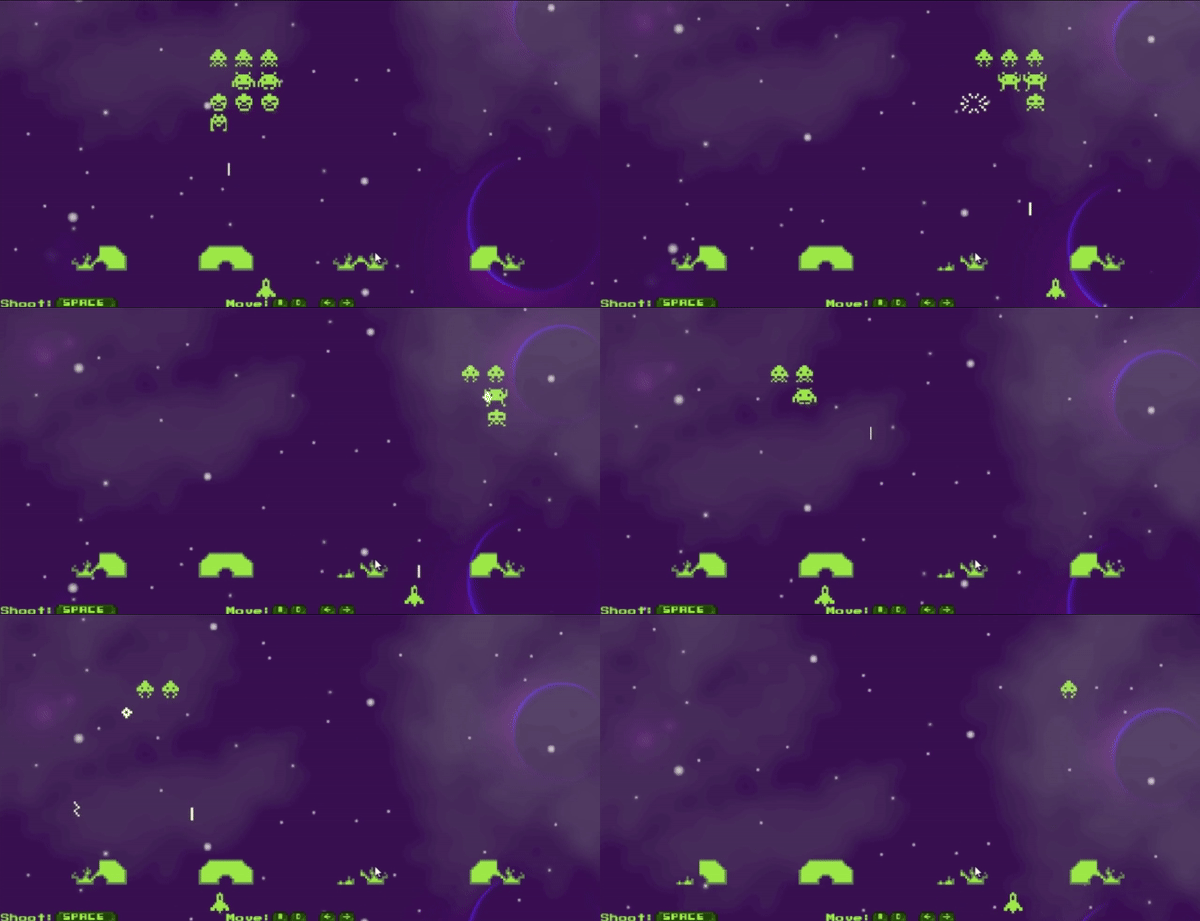
Through thorough playtesting later in development, I discovered a crash that would occur with the wave script when the player attempted to play again. I came back to this script to debug it and found a situation that could occur where enemies are added to the list that's not empty. This scenario specifically occurs when a player dies in a previous game and launches another. All the enemies from the previous game stay in the list and the new game enemies are added to it. Then when the wave script moves the enemies, it crashes because it's attempting to move enemies that no longer exist.
With breakpoint debugging, I was able to identify the casue of the crash. A single line of code to clear the list of enemies will always ensure an empty list on a new game.
    void Start()
    {
        alienWave.Clear(); //Ensure empty list
        foreach(GameObject enemy in GameObject.FindGameObjectsWithTag("Enemy"))
        {
            alienWave.Add(enemy);
        }
    }
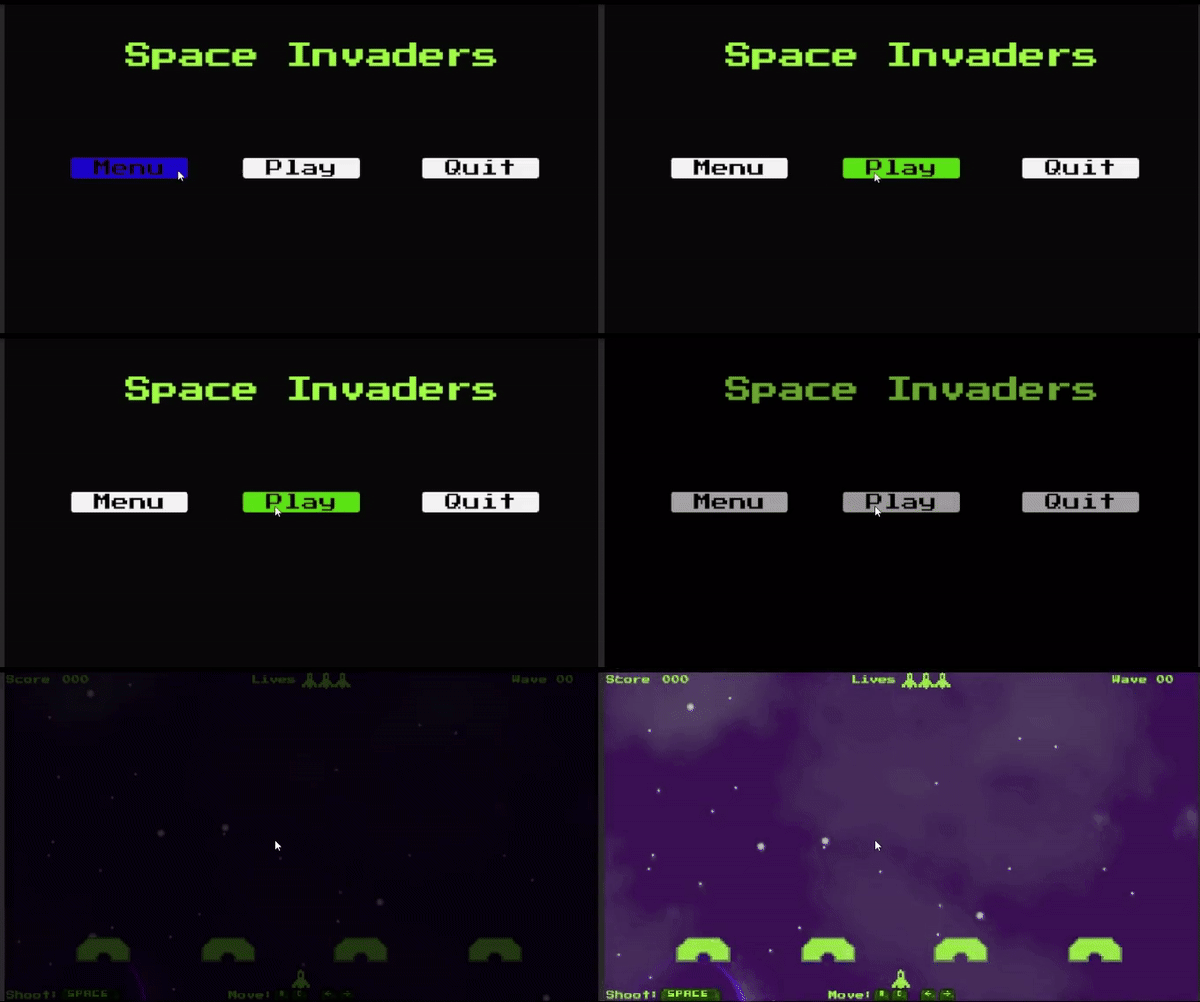
I was responsible for creating a menu scene, game scene, and game-over
scene. I worked with Unity’s UI elements to
design a menu with buttons and custom font to more accurately
represent the Space Invader theme. I referred to the Unity
documentation and uploaded a new font to the project. From there, I was able to convert it to a new
font asset that
could be used as a Text Mesh Pro object.
There was already built-in functionality in the main game to handle scene transitions so
instead of writing code for a
new animation sequence, I created a local menu script that referenced
the scene loader class. Then I referenced the
project documentation to properly call and load the corresponding scenes on button click events.
    public class MenuScript : MonoBehaviour
    {
        public SceneLoader loader;

        public void PlayGame()
        {
        loader.LoadSceneName("space_inv_game_scene");
        }

        public void GameOver()
        {
            loader.LoadSceneName("space_inv_game_over_scene");
        }

        public void SpaceInvadersMenu()
        {
            loader.LoadSceneName("space_inv_menu_scene");
        }
    }
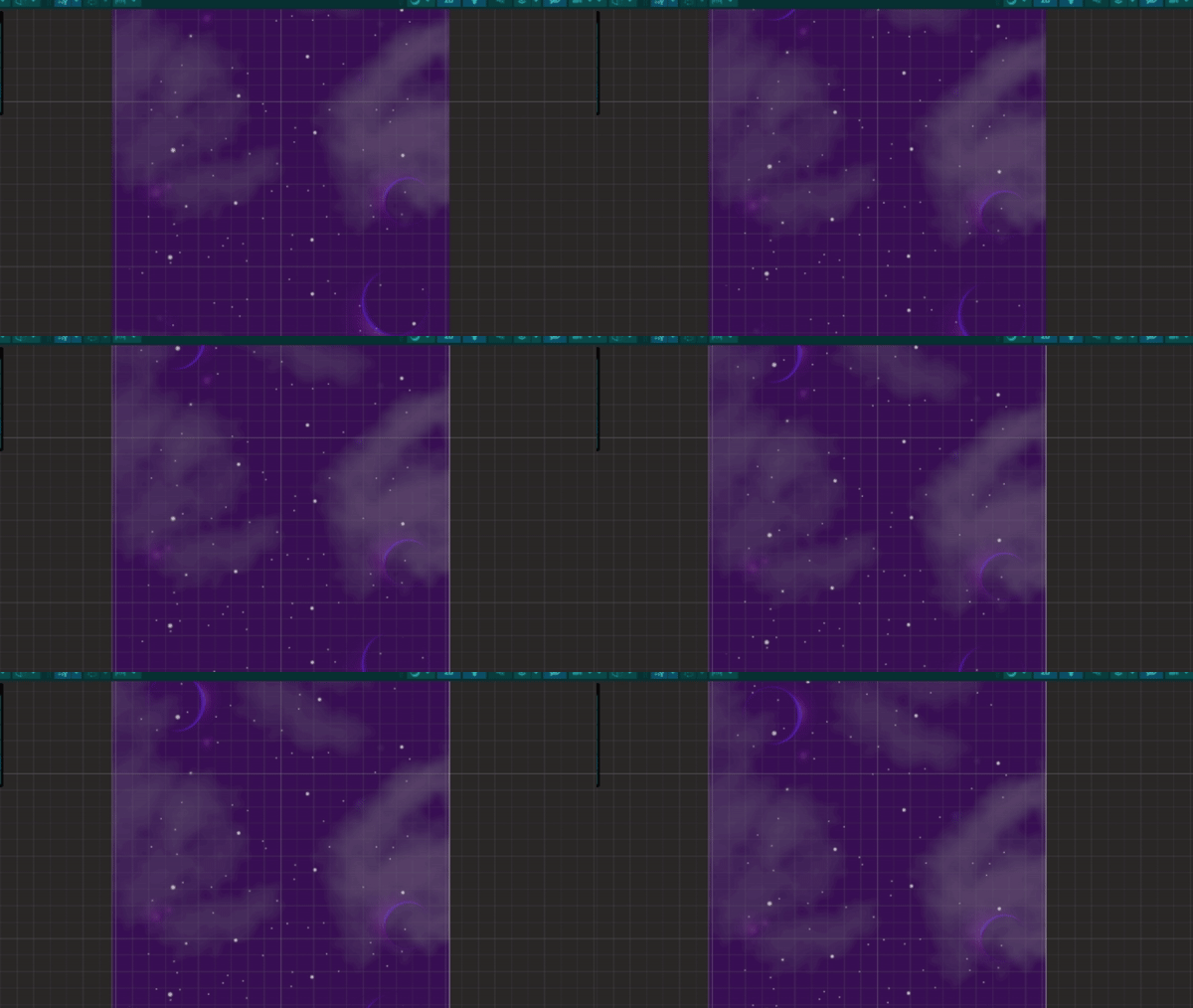
Implemented a parallax background that scrolls to make it look like the player is moving through space. Through researching how this effect is achieved, I was able to write a script that takes a sprite image, moves it slowly, and resets the position every time it reaches a certain distance. By tracking its position and resetting it when it is divisible by its tiled height, the player doesn’t notice when the background image has reset.
    private void SetupTexture()
    {
        Sprite sprite = GetComponent().sprite;
        singleTextureHeight = sprite.texture.height / sprite.pixelsPerUnit;
    }

    //Scroll and CheckReset are called in Update()
    private void Scroll()
    {
        float delta = moveSpeed * Time.deltaTime;
        transform.position += new Vector3(0f, delta, 0f);
    }

    private void CheckReset()
    {
        if ((Mathf.Abs(transform.position.y) - singleTextureHeight) > 0)
        {
            transform.position = new Vector3(transform.position.x, 0.0f, transform.position.z);
        }
    }
    private void OnCollisionEnter2D(Collision2D collision)
    {
        if(collision.gameObject.CompareTag("EnemyBullet"))
        {
            Destroy(collision.gameObject);
            health--;

            if(health <= 0)
            {
                Destroy(gameObject);
            }
            else
            {
                sRenderer.sprite=states[health - 1];
            }
        }
    }
I created shields that the player can take cover behind and
effectively shoot through while still taking damage from an enemy projectile. To show a damaged
state
effect, I created a script that holds an array of sprites. Each
element in the array represents a different
health state. Then when the correct collision happens, set the sprite renderer to the
next element in the array.
In the code to the left, the shield object checks if the collision is from an enemy
projectile. If it is, then
destroy the projectile and decrement the health of the shield. After decrementing, check to see if
the shield needs to be
destroyed or changed to a different sprite.
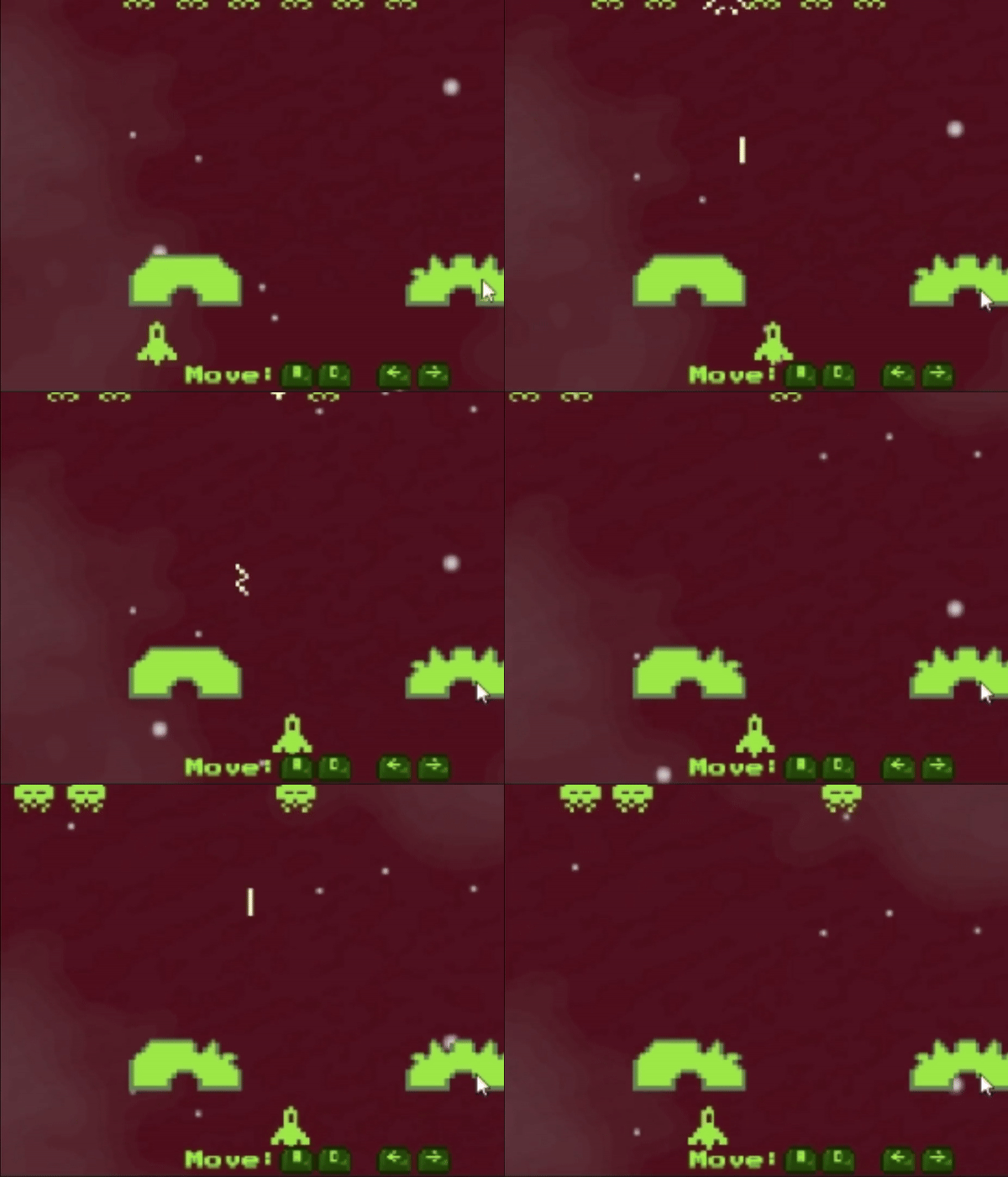
Player is able to shoot through the shield and the shield changes its sprite only when hit by an enemy projectile.
Unfortunately, the way that I initially implemented this shield would cause a game crash later on in development. I needed to come back to this script when I encountered a null reference exception from attempting to reset the health of the shield for a new wave. This happened because I called Destroy(gameObject) on the shield whenever the health reached zero. Therefore, it didn’t exist when I tried to reset its health for a new wave.
To solve this problem, I changed Destroy(gameObject) to .SetActive(false). Therefore, the shield still exists when its health reaches zero and is simply invisible to the player. This fixed the issue and the game no longer crashed when attempting to load a new wave.
    if(health <= 0)
    {
        gameObject.SetActive(false);
    }
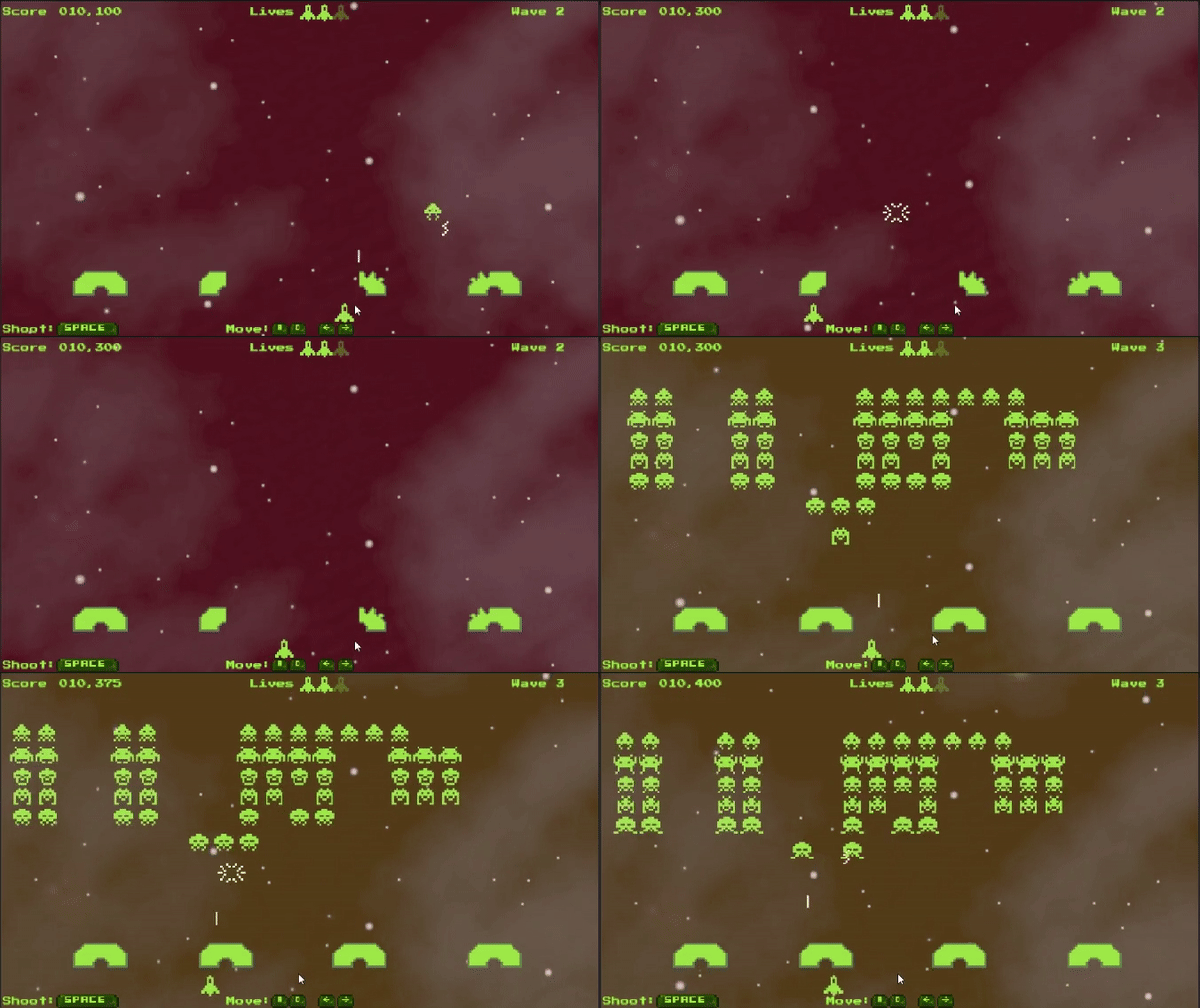
I was responsible for creating multiple levels for the game as well. To accomplish this, I added a game manager script with a method to load a new wave of enemies. Going into this, I knew I wanted other scripts in the game to have access to the functions in the game manager such as an ability to spawn a new wave, update the UI, or reset the health of the barriers. Therefore I made use of the singleton pattern.
    private static space_inv_game_manager instance;
    private void Awake()
    {
        if(instance == null)
        {
            instance = this;
        }
        else
        {
        Destroy(gameObject);
        }
    }
Below, I made a coroutine that will wait 2 seconds after the last enemy dies, before spawning in a new wave. Each wave is then randomly instantiated from an enemy wave prefab that proved effective for different enemy arrangements as the player progressed through levels.
    public static void SpawnNewWave()
    {
        instance.StartCoroutine(instance.SpawnWave());
    }

    private IEnumerator SpawnWave()
    {
        if(currentSet != null)
        {
            Destroy(currentSet);
        }

        yield return new WaitForSeconds(2);

        currentSet = Instantiate(alienWaveSet[UnityEngine.Random.Range(0,
        alienWaveSet.Length)], spawnPosition, Quaternion.identity);
        space_inv_HUD.UpdateWave();

        if(firstWave)
        {
            firstWave = false;
        }
        else
        {
            ResetBarriers();
            ChangeBackground();
        }
    }
Now when the last enemy is defeated:
To complete my last story in the sprint, I was responsible for adding a lose condition. For that, I needed to trigger a game over whenever the player would lose their last life. I simply added a check to see if the player lives were equal to zero. If they were equal to zero, load the game over scene.
    if(playerStats.currentLives == 0)
    {
        playerScore.UpdateScore(space_inv_HUD.GetScore());
        playerScore.UpdateWave(space_inv_HUD.GetWave());
        menu.GameOver();
    }
The problem with this end the game this way, however, is that the score and wave number would not persist to the game over screen. The player wouldn’t see how many points they accumulated or waves survived because the player score script creates a new instance on scene load. To properly achieve score that persists across scenes, I referenced Unity’s documentation to effectively implement the “DontDestoryOnLoad()” method. You can see how I added it to the player score script below.
    private void Awake()
    {
        int numScoreSessions = FindObjectsOfType().Length;
        if(numScoreSessions > 1)
        {
            Destroy(gameObject);
        }
        else
        {
            DontDestroyOnLoad(gameObject);
        }
    }